EasyComp Connector for Google Sheets™: How It Works, Installation, and Support
Learn how to install and use the EasyComp Connector for Google Sheets™. Sync your compensation data directly into Google Sheets™ with one-click Google SSO authentication.
The EasyComp Connector for Google Sheets™ is an official Google Sheets™ add-on that lets you sync compensation data from EasyComp directly into your spreadsheets. Whether you need earnings, payouts, attainment data, or participant details, the connector gives your team a fast, familiar way to work with compensation data—without leaving Google Sheets™.
This guide covers how the extension works, how to install it, and how to get help if you need it.
What the EasyComp Connector Does
The EasyComp Connector bridges your EasyComp platform and Google Sheets™, enabling seamless access to compensation data for analysis, reporting, and operations.
- Secure SSO login using your existing account
- Browse available data exports configured by your admin
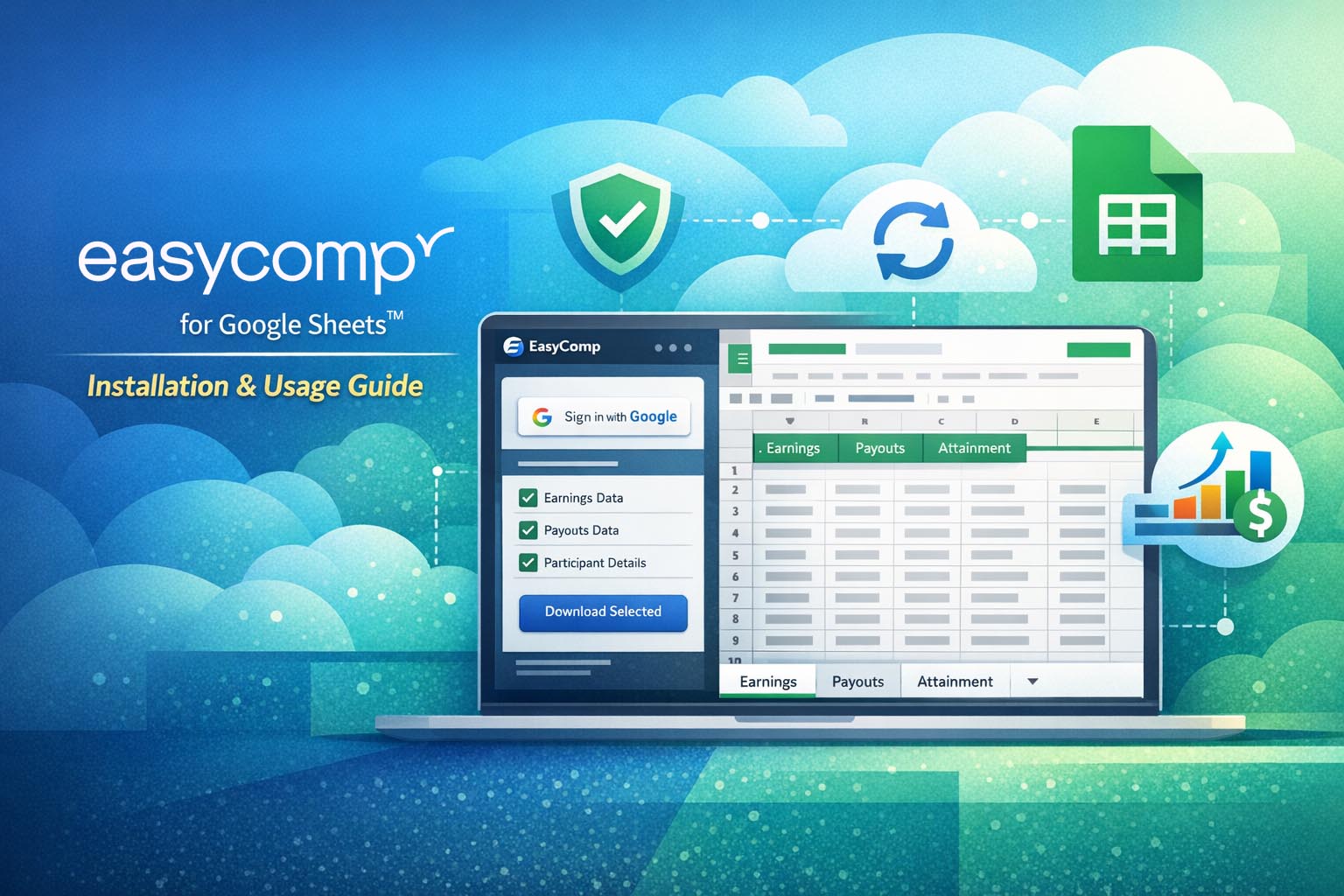
- Select and download datasets like earnings, payouts, attainment, and participant data
- Sync data into structured sheet tabs
- Refresh data on demand for up-to-date reporting
- Preserve custom columns and formulas during refreshes
It’s designed for RevOps, finance teams, compensation admins, and sales leaders who want flexible access to compensation data inside tools they already use daily.
How It Works
Authentication
The extension uses Single Sign-On (SSO) for secure authentication. When you click “Sign in” your identity is verified with EasyComp—no separate password required.
Only an authentication token is stored locally. Your credentials are never stored or transmitted by the add-on.
Selecting Exports
After signing in, you’ll see a list of available exports configured by your EasyComp administrator.
- Select individual exports
- Select all or deselect all
- Download only the datasets you need
Data Sync and Sheet Management
When data is downloaded, the connector:
- Creates or updates a sheet tab per dataset
- Adds column headers and structured rows
- Auto-formats columns for readability
On refresh:
- API data updates in place
- User-added columns are preserved
- Formulas auto-adjust to row count
- Extra rows are removed if needed
This allows you to safely build calculations, dashboards, and reports alongside synced data.
Quick Refresh from the Menu
You can refresh data anytime using: Extensions → EasyComp → Refresh Data, without reopening the sidebar.
How to Install the EasyComp Connector
Prerequisites
- A Google Workspace™ account
- Your email must be linked to an EasyComp user
- Use Google Sheets™ in a web browser (not mobile)
Installation Steps
- Open any Google Sheets™ spreadsheet
- Go to Extensions → Add-ons → Get add-ons
- Search for “EasyComp Connector”
- Click Install and approve permissions
- Open via Extensions → EasyComp → Open Sidebar
Permissions Explained
- Spreadsheet access — to write data into tabs
- External service connection — to fetch EasyComp data
- Email access — for SSO identity verification
The extension only accesses the active spreadsheet—not your entire Google Drive™.
Using the Extension
Signing In
- Open the sidebar
- Click Sign in
- Authenticate your account
- View available exports
Downloading Data
- Select exports
- Click Download Selected
- Data appears in new or updated sheet tabs
Refreshing Data
- Use the sidebar download button
- Or use Extensions → EasyComp → Refresh Data
Signing Out
Use the sidebar or menu option to sign out and clear your session.
Frequently Asked Questions
My account is not recognized. What should I do?
Your email must be linked to an EasyComp user. Contact your administrator to verify setup.
I don’t see any exports after signing in.
Exports must be configured by your EasyComp admin. Ask them to enable data exports.
Will refreshing data overwrite my formulas?
No. Custom columns and formulas are preserved and automatically adjusted.
Can I use this on multiple spreadsheets?
Yes. Each spreadsheet operates independently with its own synced data.
Does the extension work offline?
No. An internet connection is required to sync and authenticate.
Getting Support
If you need help setting up or troubleshooting the EasyComp Connector:
Email: [email protected]
Website: easycomp.ai
The EasyComp team can help ensure your compensation data flows smoothly into your reporting workflows.